How can you connect Google Merchant Center to AI for daily checks on disapprovals, feeds, and traffic?
If you run cross-border ecommerce, lead an independent store, or manage operations, you may have seen this: a product has been disapproved for days before anyone notices, or free product traffic has already fallen while nobody has opened the dashboard. Once Google Merchant Center is connected to AI, it can check products, feeds, shipping, and traffic every day, then notify operations only when something is wrong.
Google Merchant Center, often shortened to GMC, sends product information into free listings and Shopping placements. Think of the API as a controlled data window: AI can inspect the account, but it cannot change settings at will. I will cover what Merchant API can read, how to connect it from scratch, how to turn it into daily monitoring, and which changes still need human approval.
Copy this prompt first and have AI build it from zero
If you would rather skip the technical details for now, send the prompt below directly to Codex, an AI assistant that can write and run code. Claude Code, Cursor, and OpenCode can also do this. It should confirm the environment first, then move from permission setup to daily automated checks.
Why does manual GMC review miss problems so easily?
GMC problems rarely come looking for you. A product may be disapproved, a country may be missing shipping, or an availability field may disappear. Usually, someone has to open the dashboard and drill into “Needs attention” before seeing it.
For a cross-border ecommerce team, the effect lands directly on exposure, traffic, and investigation time:
- A product that fails review can lose free-listing exposure and Shopping traffic.
- A sudden drop in feed or product-record count may mean that a language, market, or data source has broken.
- A mismatch in price, currency, availability, or shipping country can keep products from appearing in part of the market.
- The later a team notices, the longer the investigation window becomes and the harder it is to tell which day traffic began to fall.
One typical case looks like this: a product shows Not approved. The page has stock, but the GMC record lacks availability, meaning the availability status. The product link also points to a language homepage rather than the correct product page. This came from one of my real Shopify stores.
If I only send a screenshot to AI, it can see only the screenshot layer. After connecting the API and checking all data sources alongside processed-product records, I found that the official Shopify feed was fine. The extra Autofeed source was the problem.
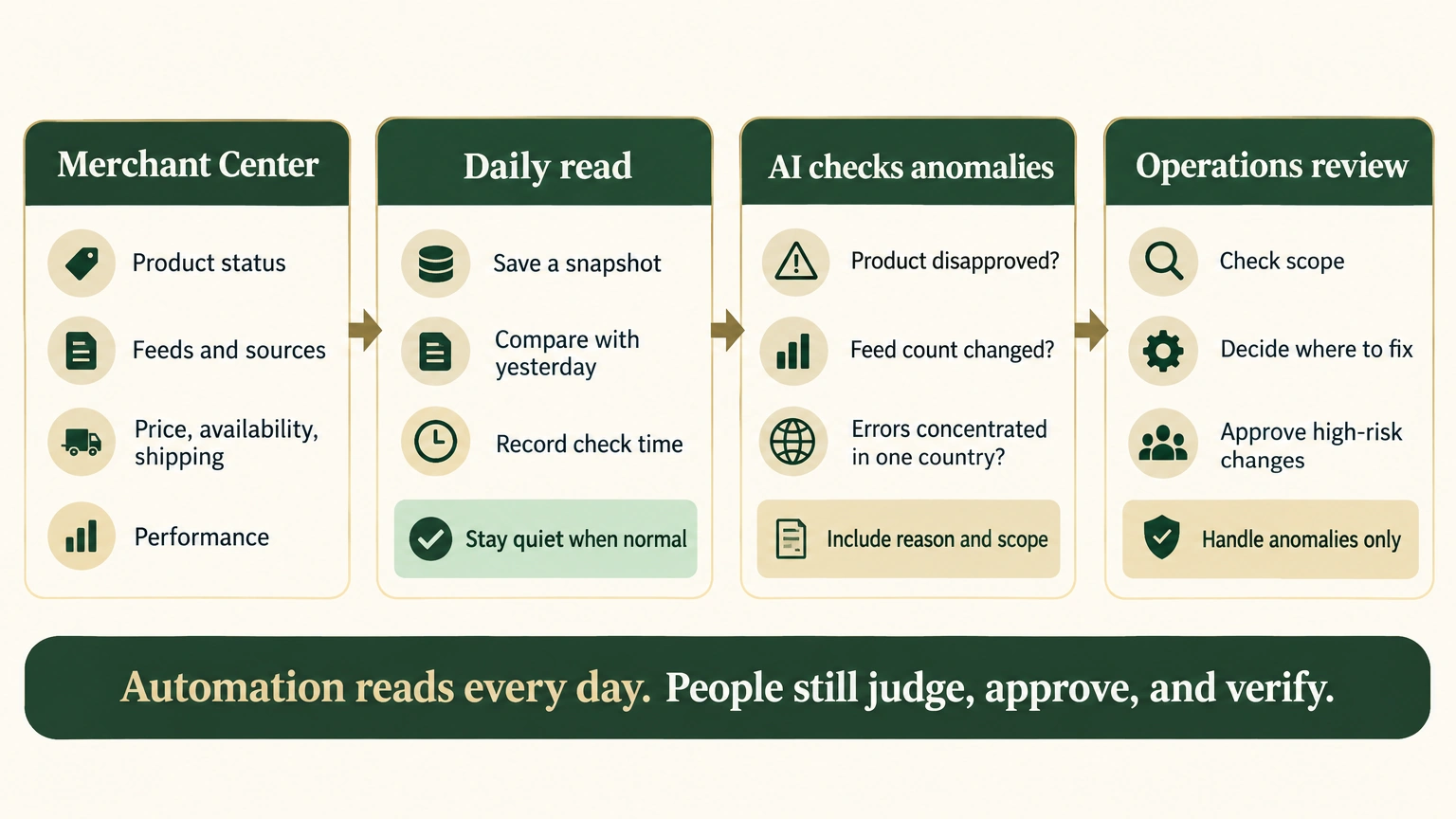
A feed is the product list that a store submits to Google. Autofeed is another list Google extracts from the site automatically. A processed product is the record Google actually reviews and displays after combining data and rules.
The useful part of this experience is not that I fixed one product. It exposed the blind spot in manual review: the dashboard shows a result, while the API lets you inspect the sources behind that result at the same time.
What can AI actually inspect after Merchant API is connected?
Merchant API is Google’s current interface for reading and managing Merchant Center. Read-only mode already covers most routine operations checks.
| What operations wants to know | What AI can read | Why it matters to performance |
|---|---|---|
| Which products failed review? | Approved, Limited, Disapproved, Under review | Recover product exposure that may be missing |
| Why was it disapproved? | Issue code, affected country, field, and severity | Know whether availability, price, images, or shipping comes first |
| Where did the product come from? | Shopify API feed, Autofeed, file feed | Find duplicate products and incorrect data sources |
| Is product information consistent? | Title, price, currency, availability, link, image, and language | Prevent a mismatch between the site and Google’s data |
| Which market is missing configuration? | Target countries and Shipping Settings | Find disapprovals that happen only in one country |
| Has product traffic changed? | Impressions, clicks, CTR, and available conversions | Tell whether free-product traffic has fallen suddenly |
| Is the system abnormal? | Daily changes in product count, feed count, and disapproval count | Avoid relying on someone remembering yesterday’s record count |
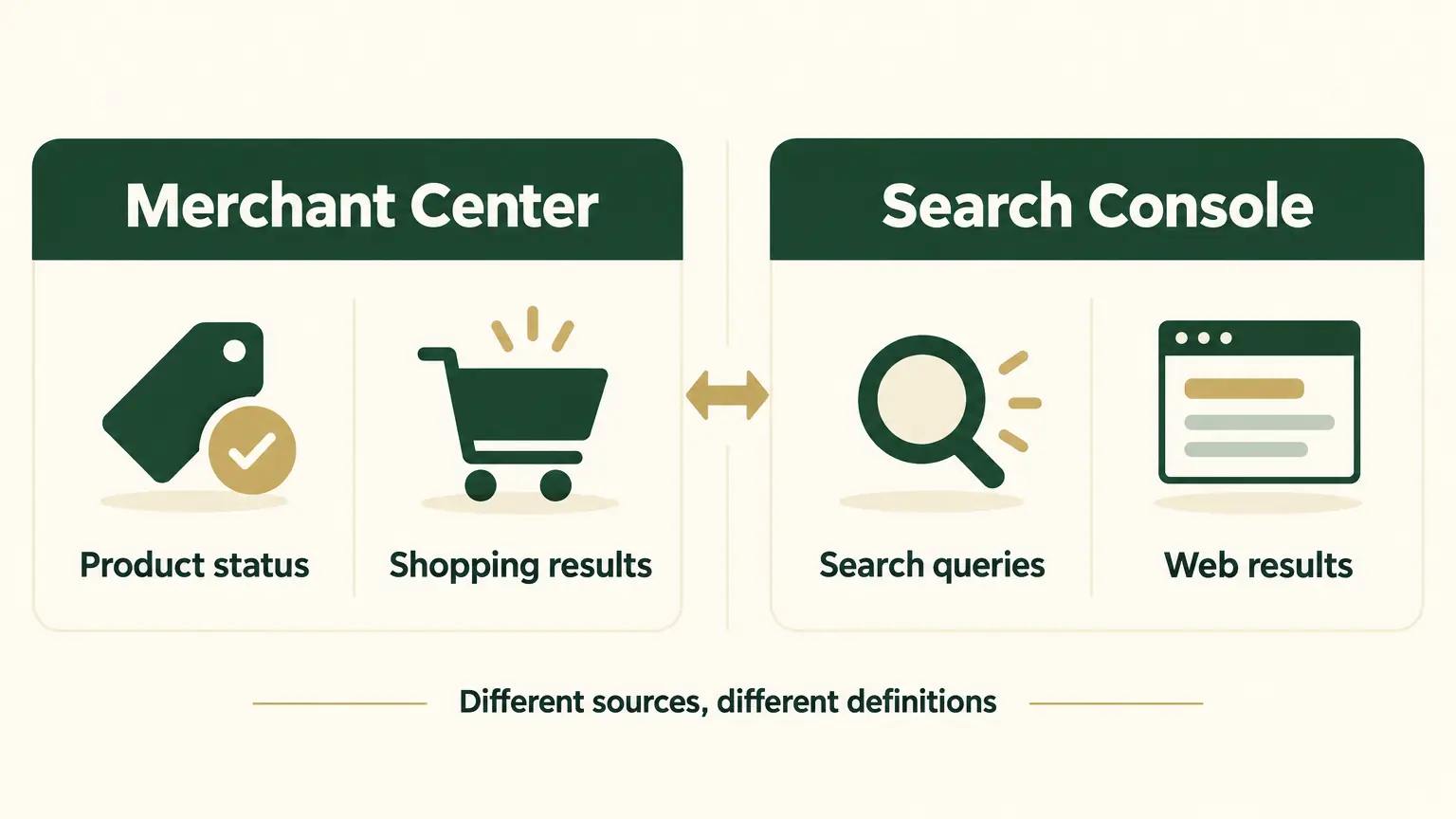
GMC covers products, feeds, review status, and Shopping performance. GSC covers web pages, queries, organic-search clicks, and rankings. In my actual data, GMC had far fewer clicks than GSC because it covers product and shopping contexts, while GSC also includes pages such as blog posts. You can compare trends across the two, but their objects and definitions differ, so do not add them together or treat them as channel-attribution shares.
When I review GMC performance, I use this order:
- Impressions fall: Check whether products were disapproved, target countries shrank, or feed and product records dropped suddenly.
- Impressions hold but clicks fall: Then check whether the title, main image, price, and search intent still match.
- Clicks hold but orders fall: Go back to Shopify, GA4, and onsite conversion checks. GMC data alone cannot prove where a sales decline occurred.
How do you connect Google Merchant Center to AI?
The code itself is manageable. The part that usually blocks people is the three layers of authorization. Miss one, and the request fails, but the error can mean something completely different.
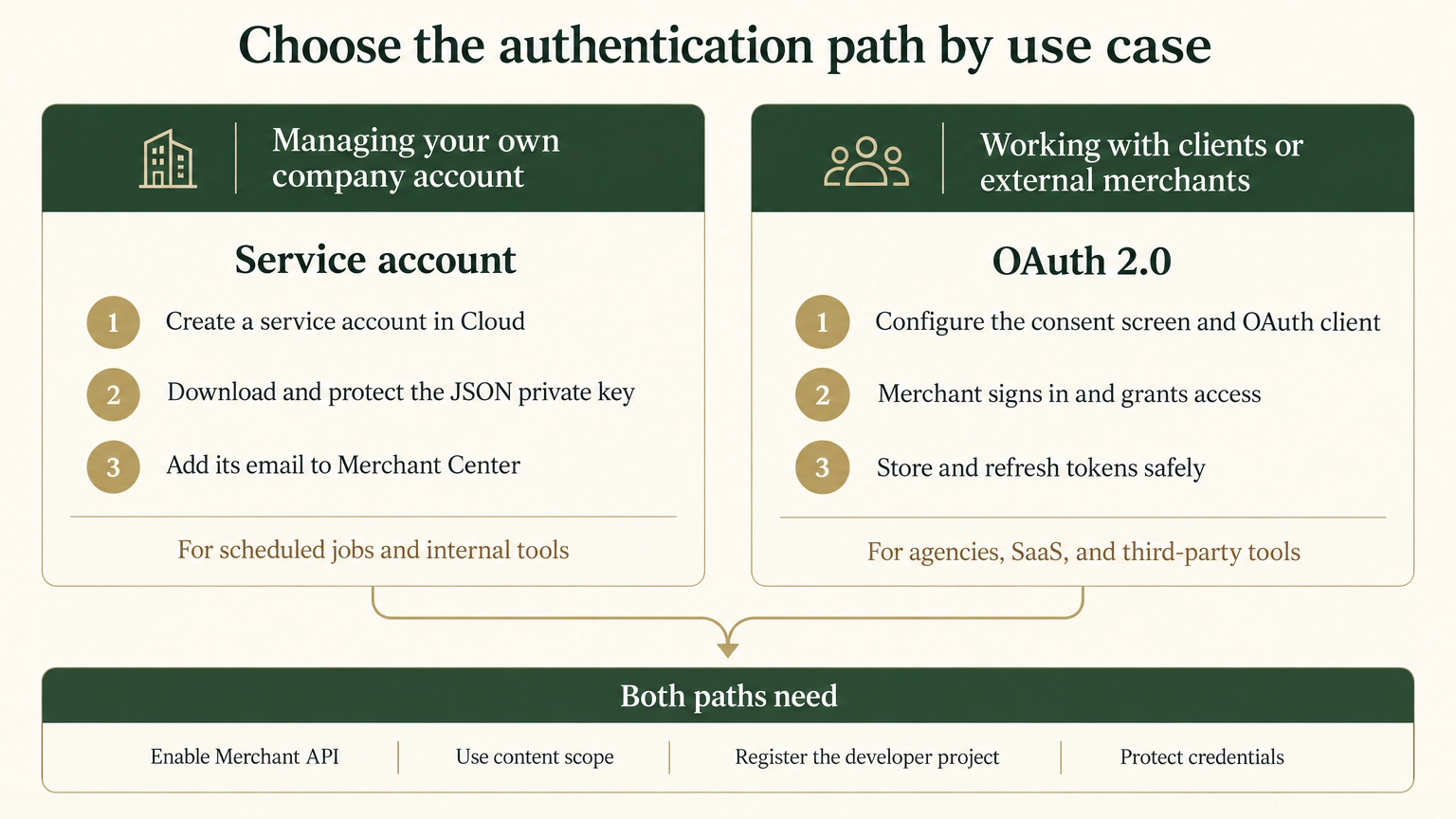
- Decide the use case. Use a service account for an internal account; use OAuth 2.0 when external merchants need to authorize access.
- Prepare the project and credentials. A service account needs a downloaded JSON private-key file, a local identity credential, and its email must be added to Merchant Center. OAuth needs a consent screen and client. Credentials do not belong in Git or chat.
- Set the scope. Both paths use
https://www.googleapis.com/auth/content. There is currently no separate read-only scope. - Enable the API. Enable
merchantapi.googleapis.comin Google Cloud. If you receiveSERVICE_DISABLED, check the service switch first. - Register the project. If you receive
GCP_NOT_REGISTERED, register the GCP project that calls the API:
POST accounts/YOUR_MERCHANT_ID/developerRegistration:registerGcpregisterGcp adds API developer identity at the account level. The account owner must approve it before the first execution, and the request needs an Admin identity.
Next, build a client that performs no resource writes. Read accounts, feeds, products, and shipping through GET. Use POST only to query performance reports, not to change account resources.
from google.auth.transport.requests import AuthorizedSession
from google.oauth2 import service_account

SCOPE = "https://www.googleapis.com/auth/content"
merchant_id = "YOUR_MERCHANT_ID"
creds = service_account.Credentials.from_service_account_file(
    "service-account.json",
    scopes=[SCOPE],
)

session = AuthorizedSession(creds)
url = f"https://merchantapi.googleapis.com/products/v1/accounts/{merchant_id}/products"
response = session.get(url, params={"pageSize": 1000}, timeout=45)
response.raise_for_status()

for product in response.json().get("products", []):
    print(product.get("offerId"), product.get("productStatus", {}))
This code demonstrates authentication and product reading for an internal account only. Use OAuth 2.0 for external merchants. A complete client also needs pagination, error handling, field redaction, and the other endpoints.
An operations lead does not need to inspect the code line by line. At handoff, I look for six things: total product count, disapproval reasons and countries, feed sources, latest successful time, historical snapshots, and whether a simulated anomaly triggers a notification.
One query is not enough. How do you turn it into a daily automated check?
When a script prints a result once, operations still has to run it every day. The time-saving approach is to save a daily snapshot, meaning a record of that day’s state, and compare it with the previous day.
My daily check saves these signals:
- Total processed products.
- Counts for the Shopify API feed and Autofeed.
- Disapproved-product count, issue codes, and affected countries.
- Product-link, price, availability, and target-country anomalies.
- The most recent check time and whether the task succeeded.
latest.json feeds the Daily Digest, while historical snapshots support the weekly report. Four operational details matter while it runs:
- The same product issue can return in more than one reporting context, so deduplicate by product.
- GMC Performance has delayed backfill. The weekly report should exclude the most recent two days to avoid a false crash alert.
- A processed product is not the same thing as a physical product count. One product can produce multiple records across language or market feeds.
- A scheduled task returning code 0 only means that run ended. You still need to monitor expired authorization, empty API responses, and notification failures.
Schedule the job away from the Shopify feed-sync window, at a time when the team can still handle an anomaly that day. Keep quiet when numbers have not changed. Notify operations only when product count, feeds, or concentrated disapprovals are abnormal.
AI can check every day, but it should not make changes on its own
Merchant API has a broad authorization scope. Even when the current code only reads, a private key or refresh token could be used for writes by other code. The safety boundary belongs in the workflow.
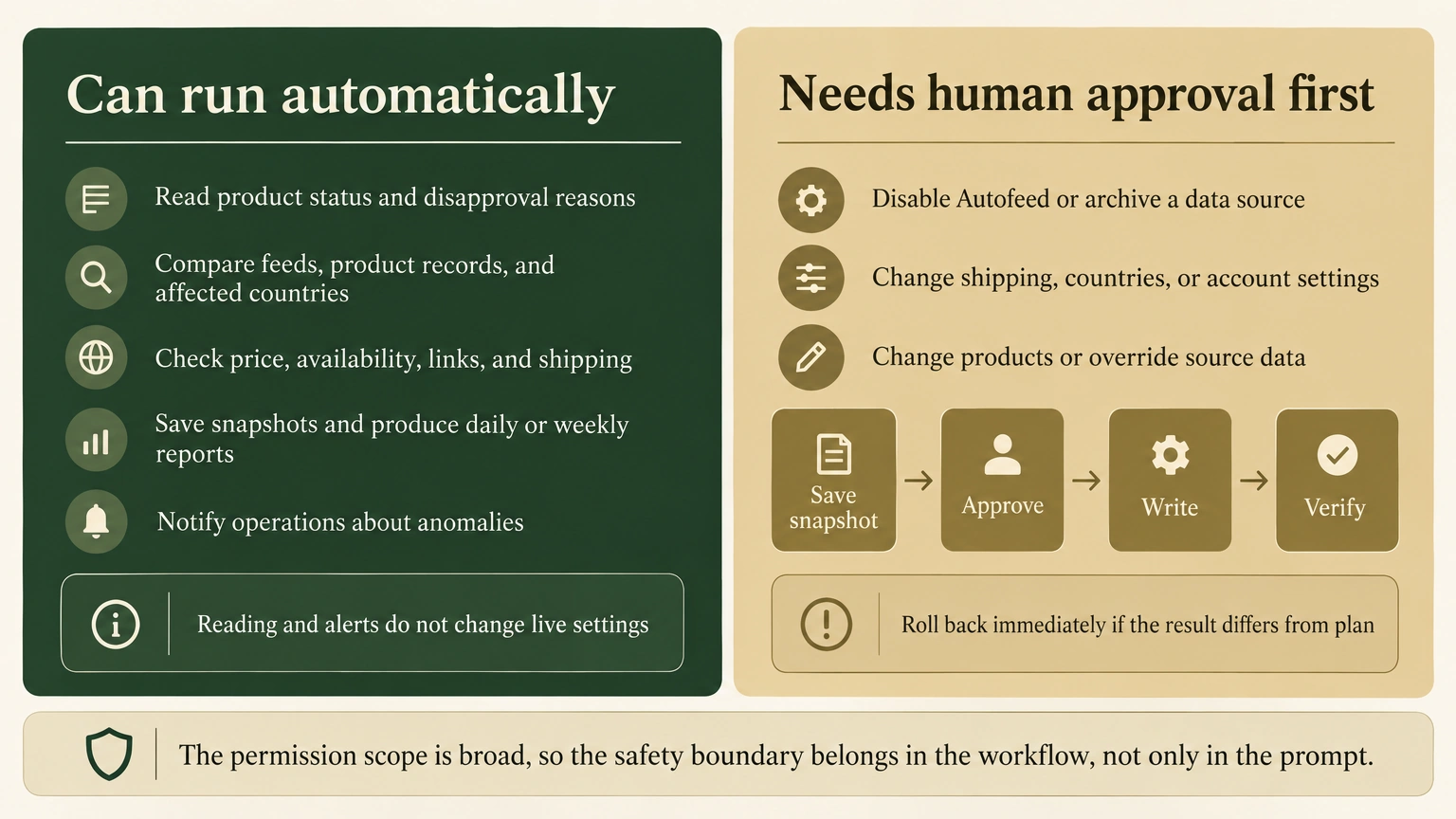
Routine reads can run automatically. Live changes, such as disabling Autofeed, changing shipping, or archiving a data source, need separate approval.
When a change is genuinely needed, I follow this sequence:
- State the scope of the change and save the full state plus the
etagversion marker. - After the account owner approves it, change only the target fields.
- Read again after the write and compare the previous settings. Wait for asynchronous processing rather than resubmitting.
- Keep a rollback method that restores the pre-change state.
One real fix makes the boundary concrete:
- A batch of products was disapproved only in one European country. The eventual cause was a missing GMC Shipping Settings configuration.
- After I completed the shipping rule, the other settings stayed unchanged and the relevant disapprovals disappeared. This is one successful sample, not a remedy for every disapproval.
- Titles, prices, and availability should usually be changed at the Shopify source so the next sync does not create the same conflict again.
Which stores should do this, and where should they start?
If you have only a few products, sell in one market, and review GMC once a month, manual review may cost less. API access brings permission, script, and maintenance costs. More integration is not automatically better.
Read-only monitoring begins to make sense when any two of these are true:
- You operate feeds across multiple countries or languages.
- Product disapprovals have gone unnoticed for several days before.
- Nobody on the team has a fixed GMC review routine.
- Product count, feed count, or free-product traffic needs weekly reporting.
- You already use AI for daily reporting and want GMC in the same workflow.
Do not start by changing settings automatically. Start with four actions, authorize, audit, daily, and weekly, and make them reliably answer four questions: products, feeds, disapprovals, and affected countries.
Get the read-only checks stable first. Remove missing records, false alerts, and notification failures before considering write access. For most teams, seeing disapprovals and traffic anomalies on the same day already solves one of GMC’s most difficult operational problems.
What could I write about next?
I also connect GSC, GA4, Shopify, and Google Ads into the same automation dashboard, updating it each day instead of copying numbers across separate backends. If there is interest, I can write about connecting GSC or GA4 next.